Backing Up Databases
Prior to an upgrade, backing up the database is recommended in order to revert to the current version if needed. The suggested backup methods given are one of many options that can be used to backup Postgres or SQL Server. If nightly scheduled backups are already being done, then there is no need to backup the server manually as shown below.
Note: If the database is on the same host as the CenterScape Application server a VM snapshot can be used instead of a database backup, but it is recommended that the RF Code CenterScape service be shutdown prior to the snapshot being initiated to aid with database integrity.
Postgres
Postgres Using pgAdmin4 Client
Run the PG Admin 4 Postgres Management Client. If the pgAdmin4 software is not installed, download and install it or use command line tools instead.
There will be a password prompt to access the cached passwords if this is not the first time it has been used.
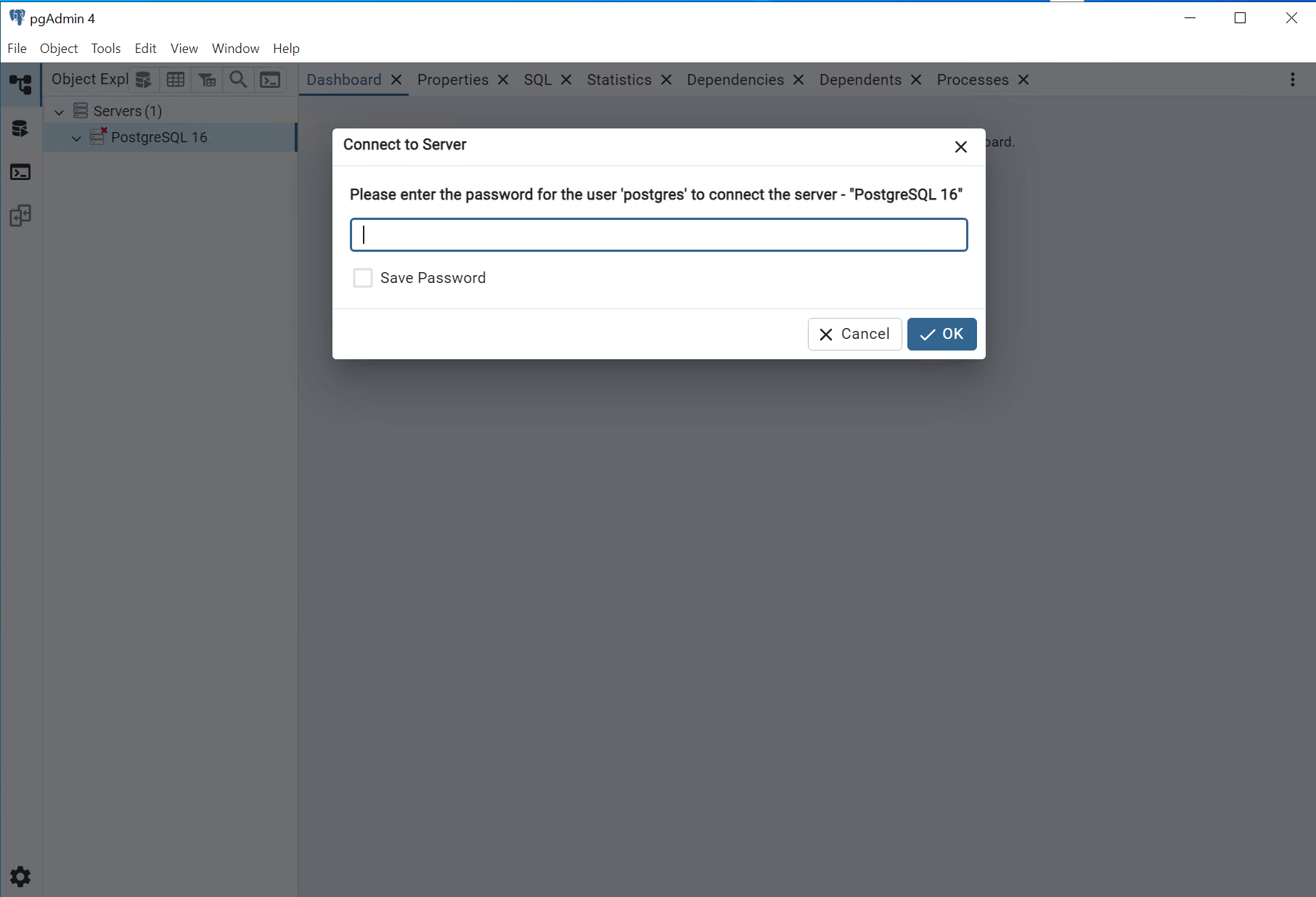
The first time pgAdmin is used it will need to know the path of the Postgres binaries it uses for actions like backup and restore. This is found under File->Preferences and the Paths->binary Paths. Set the version path to the bin directory of the Postgres install that corresponds to the version of Postgres installed. In this case it is C:\Program Files\PostgreSQL\16\bin but that can vary depending on the version and location Postgres was installed in.
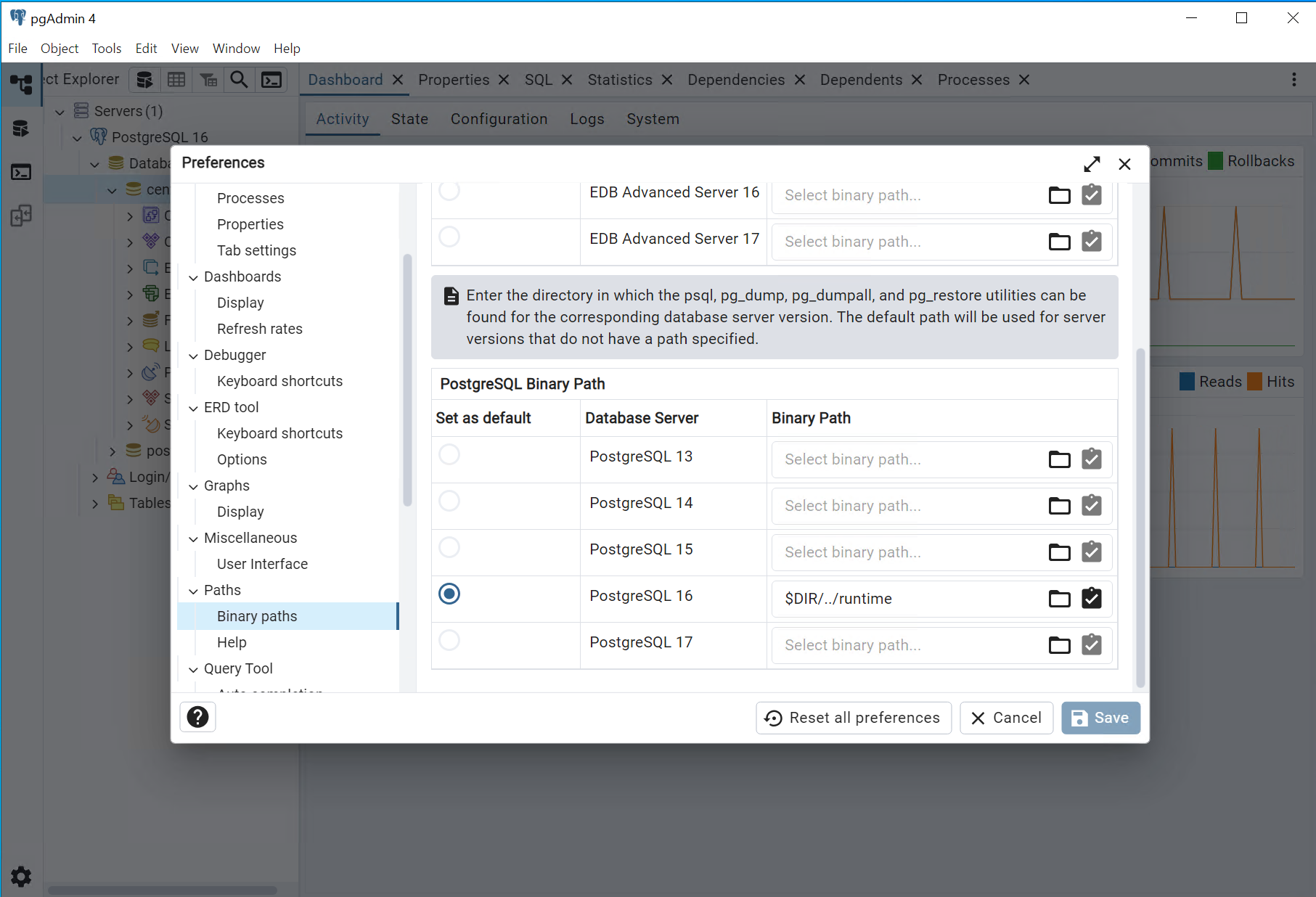
After the Binary path is defined select the database to be backed up from the client.
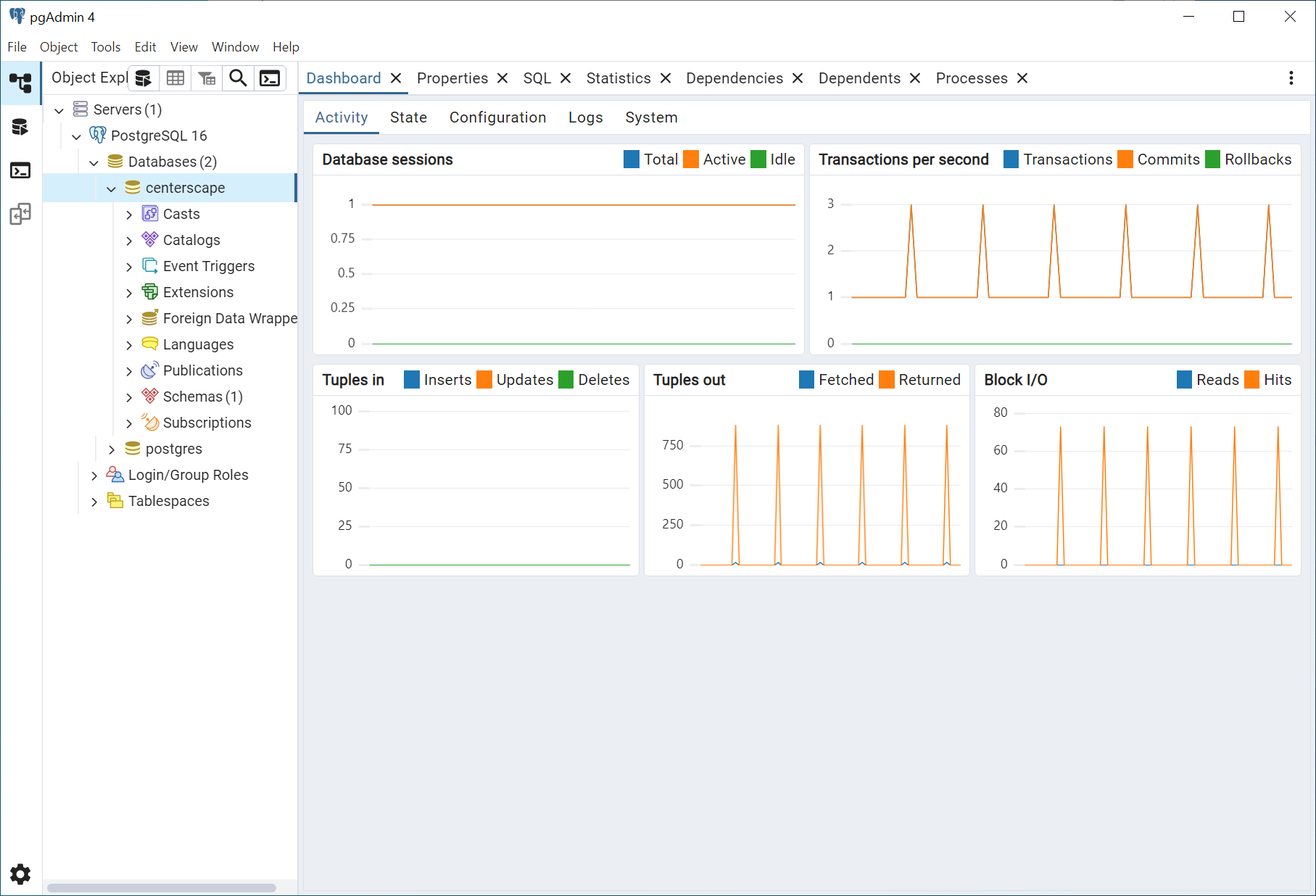
Right Click the database and select "Backup..."

Provide a file name for the backup and select Format to be "Custom". Other formats can be used but custom does some compression to save disk space. The remaining defaults do not need to be modified. Click "Backup" to start the backup.
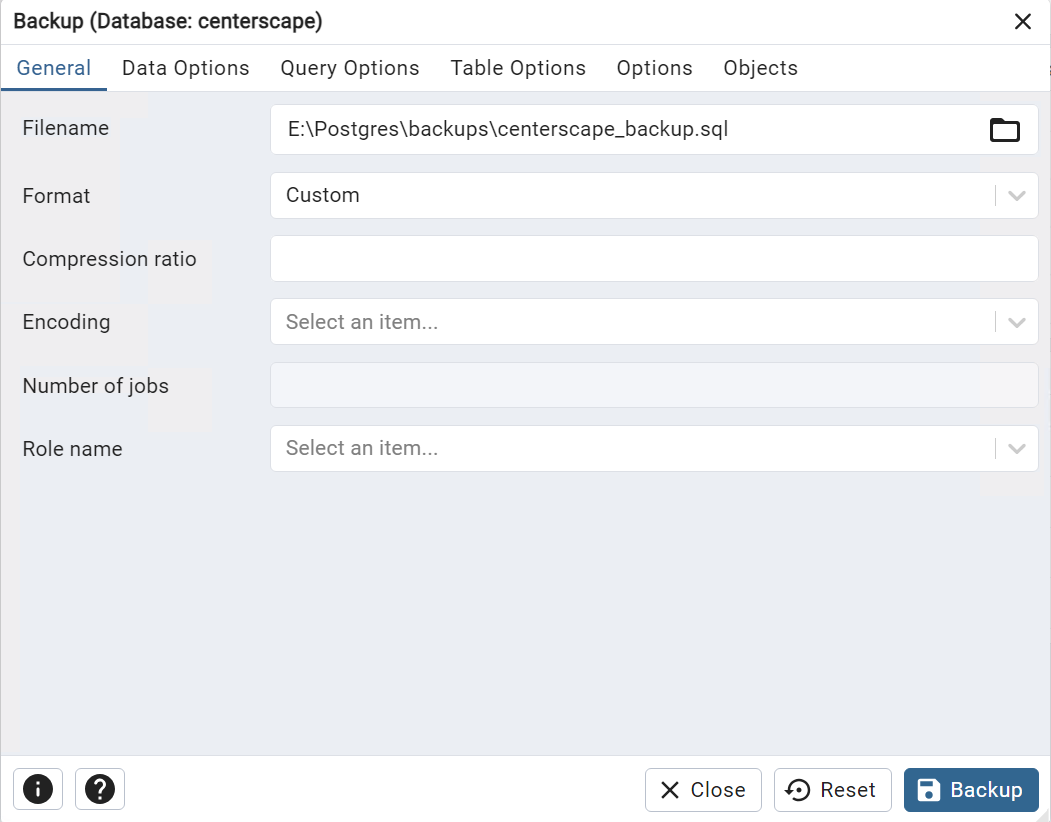
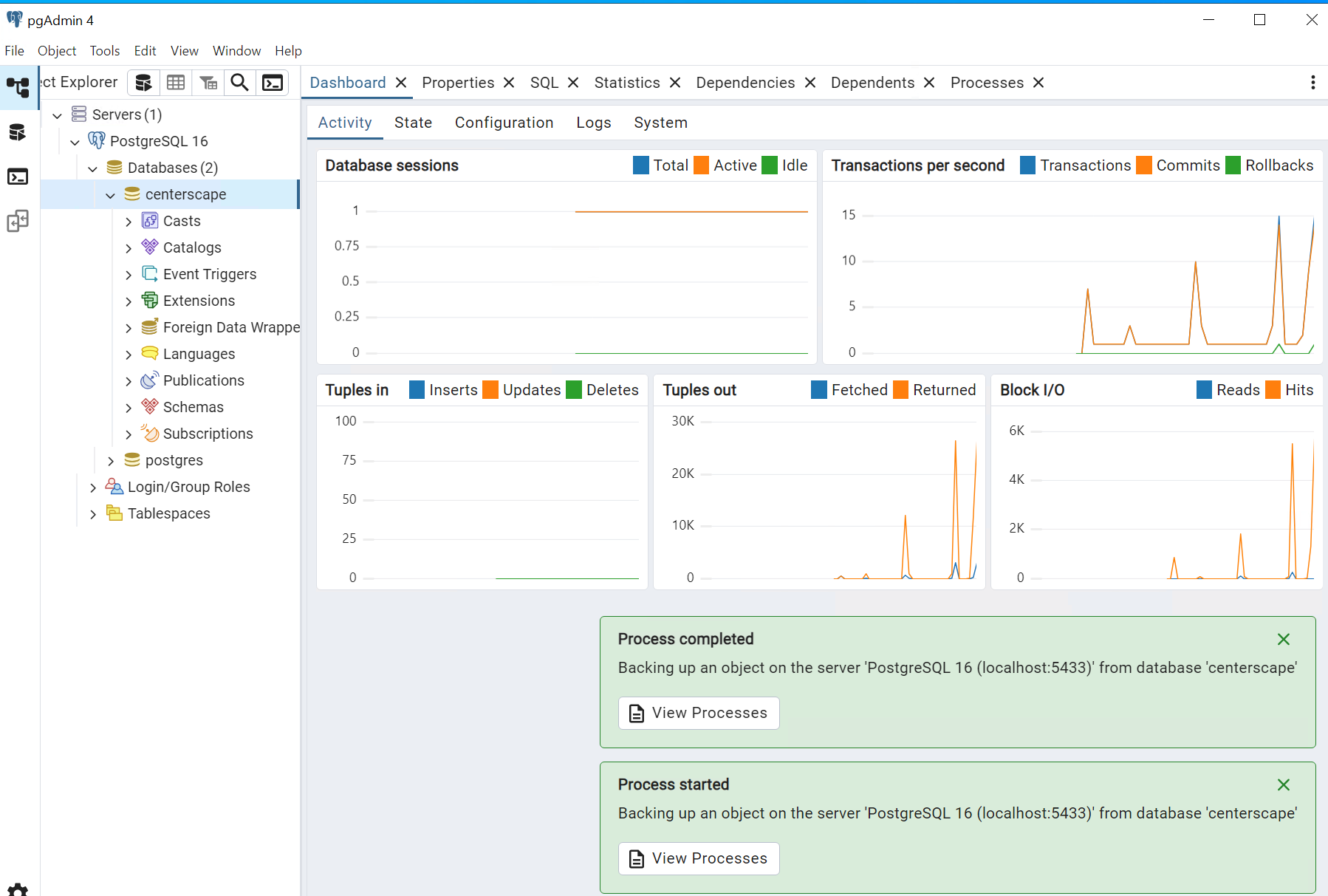
The Backup could complete quickly or take hours on a large system. The CenterScape software should work without issues during the backup.
Postgres Using Command Line
On Linux Servers or on Windows Servers that do not have pgAdmin4 installed, backing up via command line can be used. The following command will backup the database "centerscape" using the custom format to a file called backup_file.sql.
pg_dump -U postgres --format=c centerscape -f backup_file.sql
SQL Server
There are many ways to backup SQL Server, the following method using the SQL Studio Server Management Studio to backup the database. It assumed that the Studio is running on the same host as the database server engine and that the logged in user has database Sysadmin rights to the instance running CenterScape.
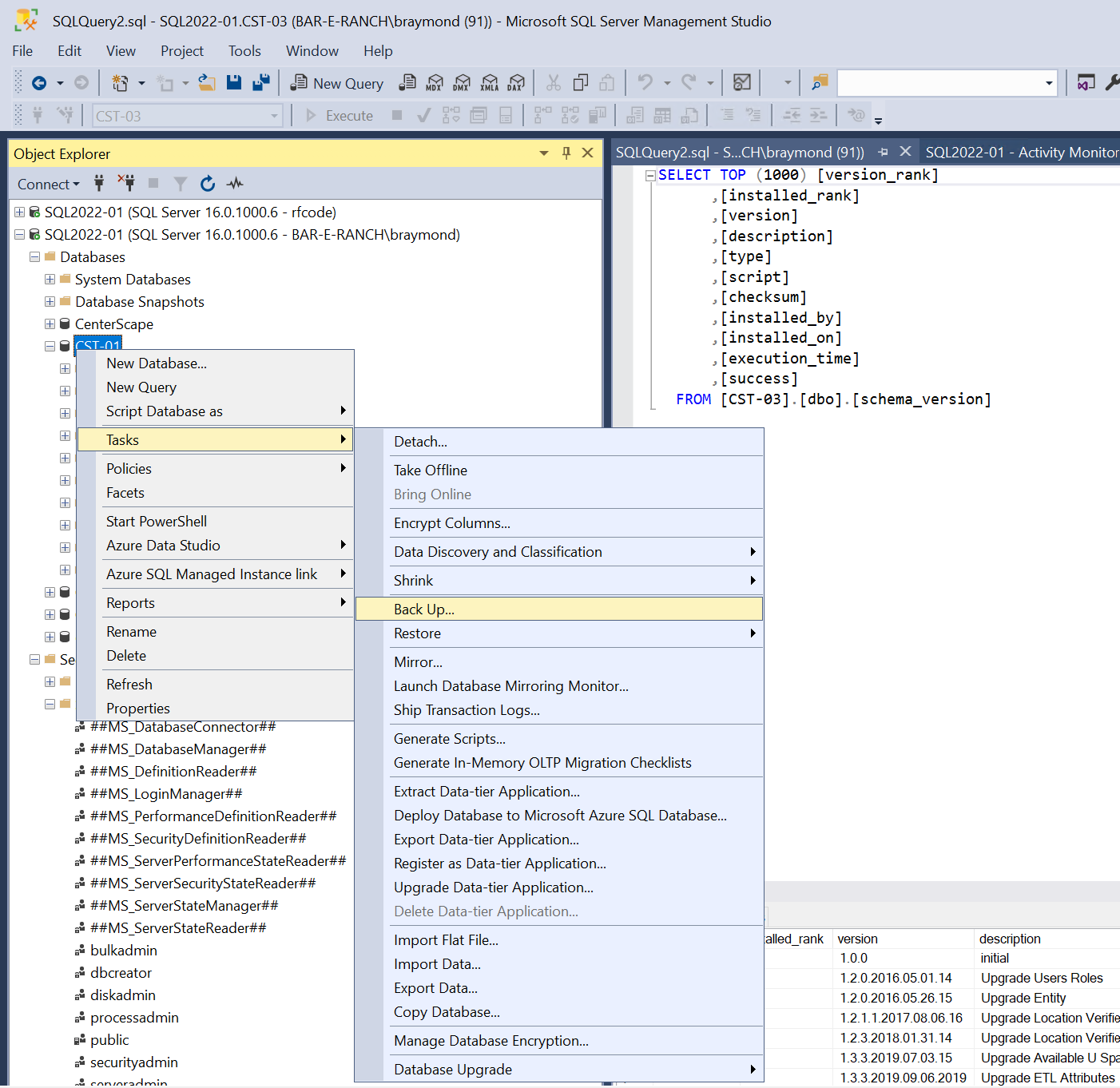
Run the SQL Server Studio and log into the database engine. Select the CenterScape database and right click Tasks->Backup...
Select "Full" for backup type and click ok.
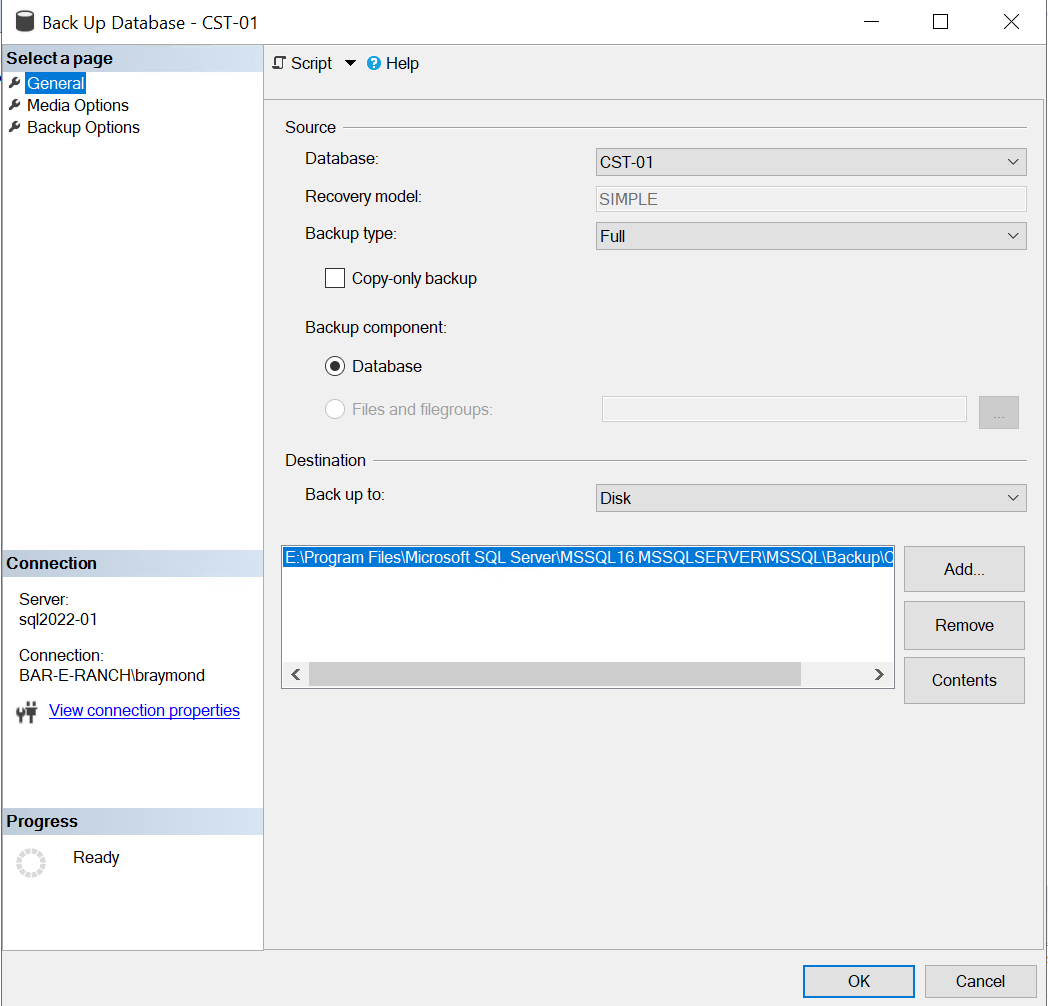
The backup can take seconds or hours to complete depending on the size of the database. Progress will be shown on the bottom left of the backup dialog window.

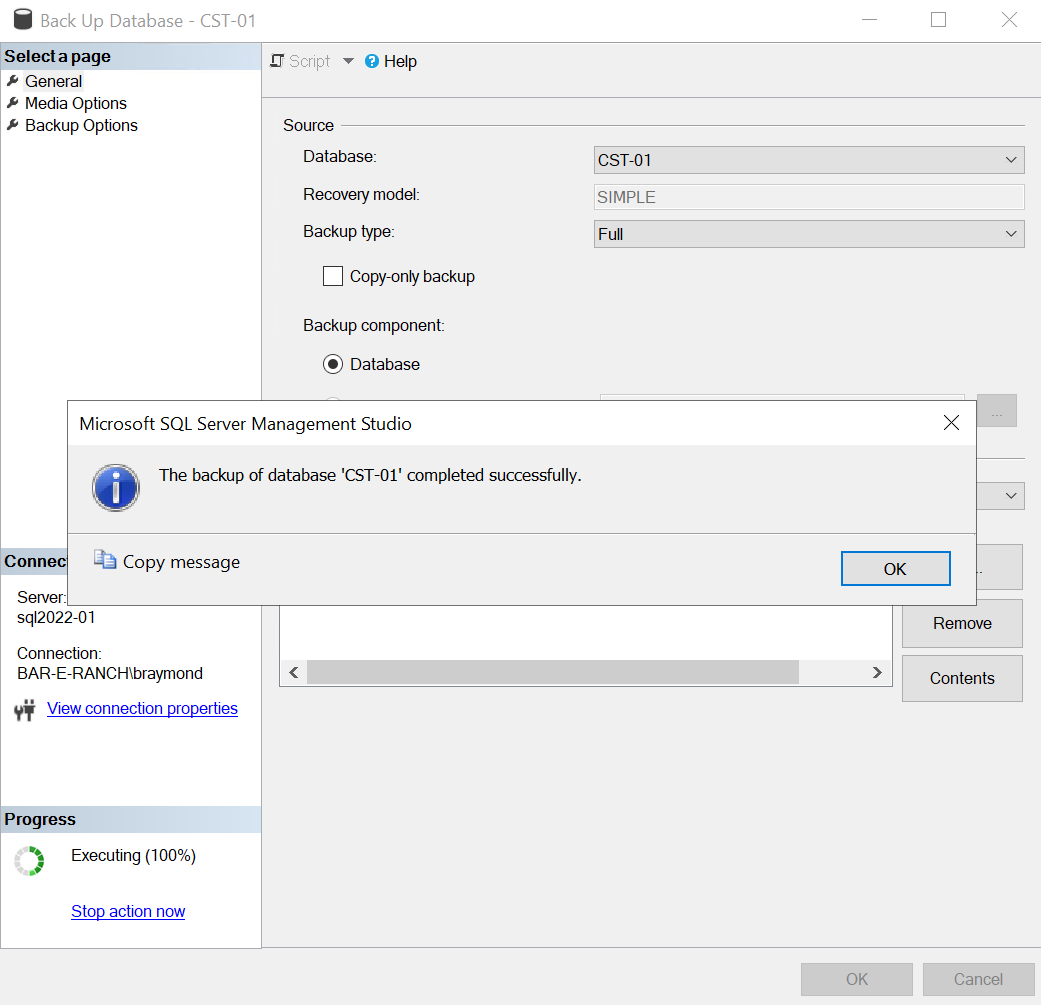
The backup should report complete if it is successful.